ScaDS.AI API key in VS Code
Follow these steps to use your ScaDS.AI API key in the VS Code app on Open OnDemand.
1. Get an API key
Before you can use your ScaDS.AI API key, obtain one in the Self Service Portal (SSP).
If you already have an API key but didn't note it anywhere, regenerate a new one and store it in your password manager for future use.
2. Start VS Code from Open OnDemand
With your API key ready, go to Open OnDemand, select the application Visual Studio Code, and choose "Yes" in the field ScaDS.AI LLM API.
Warning
Launching the app rewrites $HOME/.local/share/code-server/User/chatLanguageModels.json
— manual edits there are lost.
3. Connect to VS Code
Once your session has started, connect via the Connect to VS Code button.
4. Insert your API key in VS Code
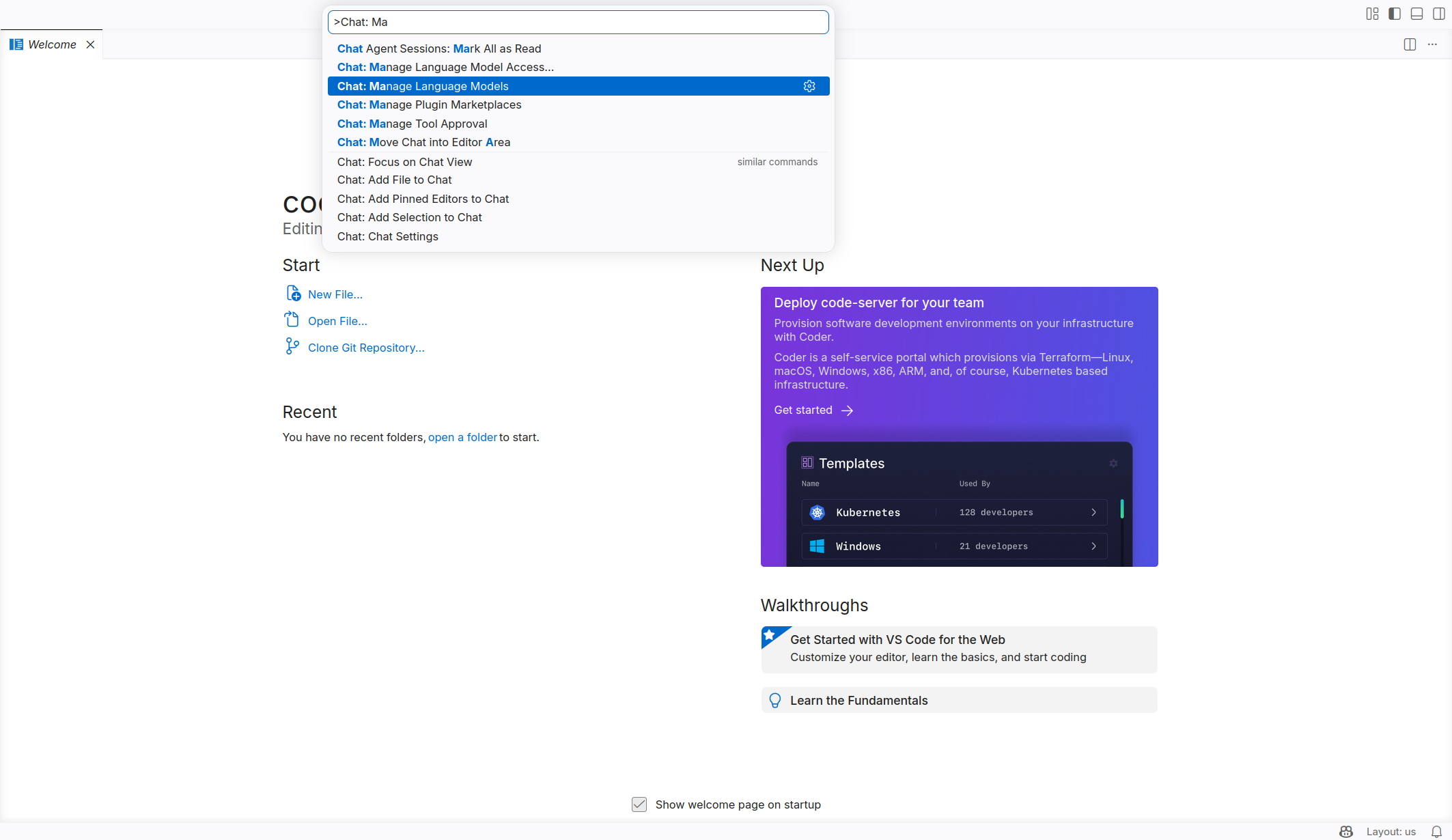
Open the Command Palette (the search bar at the top of VS Code) and enter
>Chat: Manage Language Models.
Note
You can also use strg + caps + p to open the Command Palette or F1 when using Firefox.
Note
You can use Ctrl+Shift+P (⌘⇧P on macOS) or F1 to open the Command Palette in your browser (in Firefox only F1 works) or in your local VS Code.
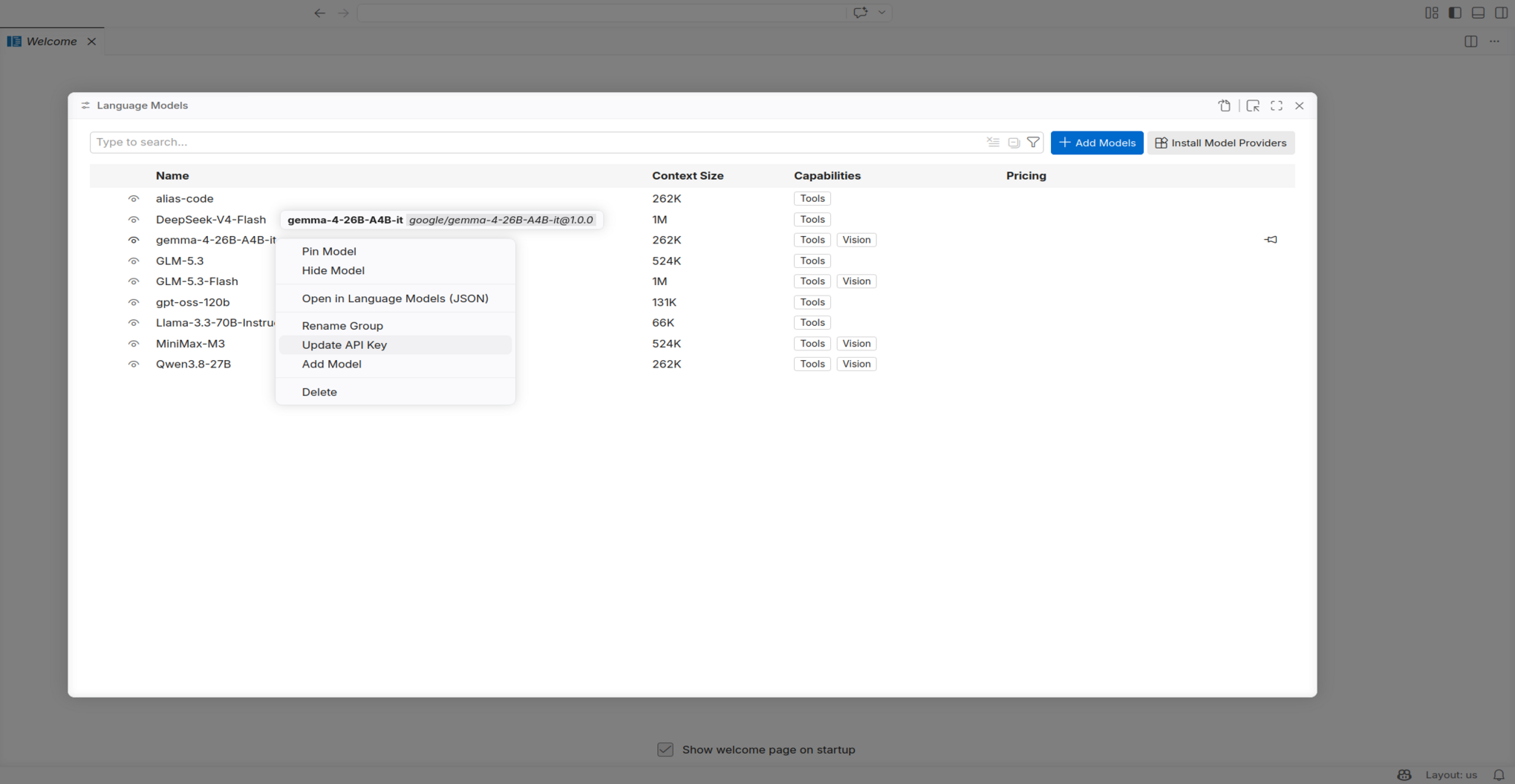
In the model list, right-click a model and select Update API Key.
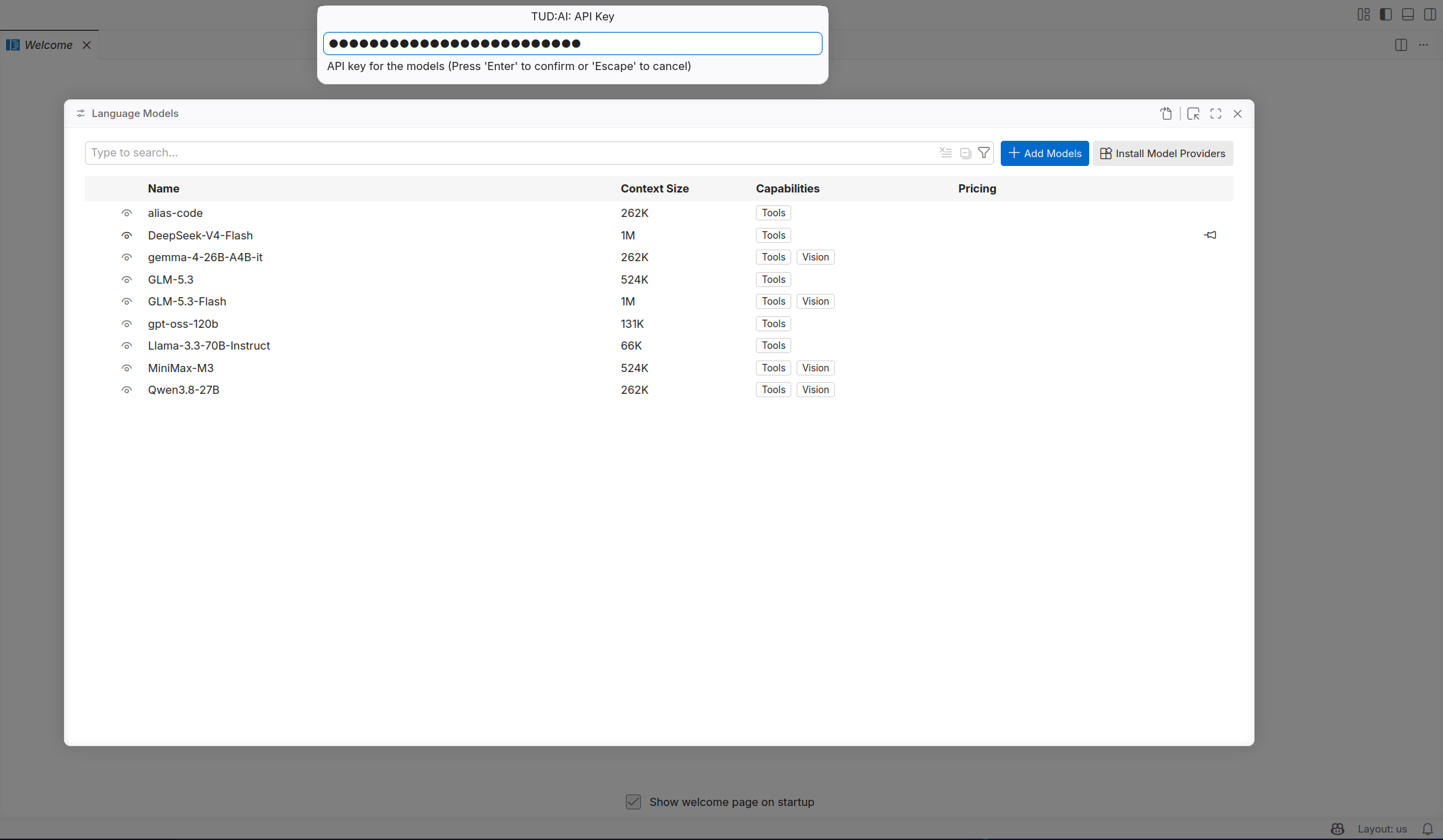
Enter your API key and press Enter.
Backlinks
No other pages link to this page.